
You requested your Snapchat memories, waited days for the download link, and finally got the ZIP file. But when you opened it, you expected folders full of photos and videos. Instead, you found a handful of HTML files and maybe some JSON folders. No actual photos. No videos. Just a 2-8 MB file when you have years of memories.
Your export isn’t broken. Snapchat’s export system works completely differently from Google Photos or iCloud. The ZIP file never contains your actual photos or videos. It only contains HTML files with download links to your memories, plus a JSON file with metadata. This confuses thousands of users who search “snapchat empty export”, thinking something went wrong.
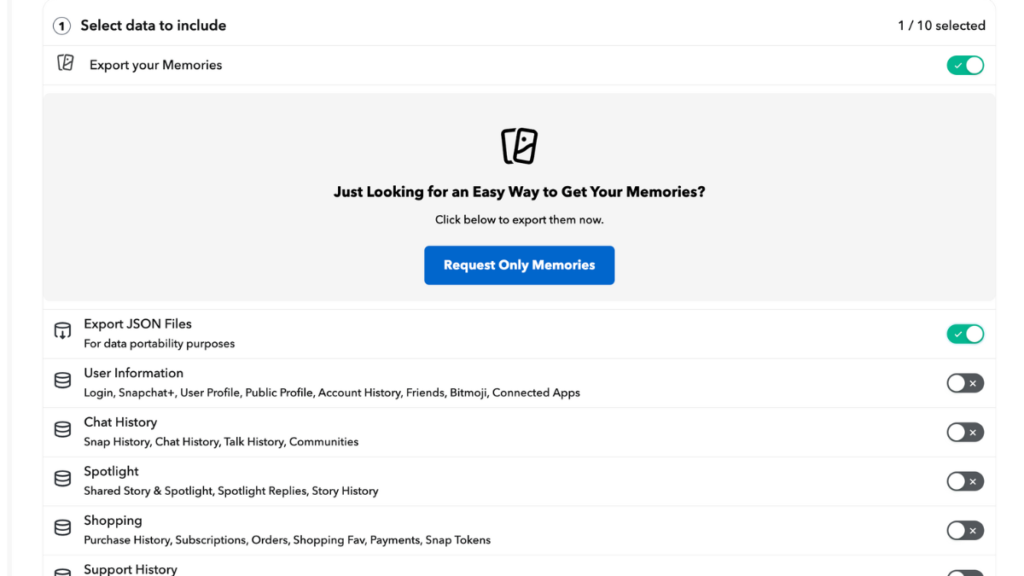
The first cause is a configuration error during the export request. When you request your data at accounts.snapchat.com, you will see multiple checkboxes. If you don’t explicitly select “Export your Memories,” Snapchat will process your request, but won’t include any memories.
When you go back to check your export status, you’ll see “Empty export” displayed on the Snapchat website. There’s no download link. No ZIP file. Just the text “Empty export.”
This happens because Snapchat created an export containing only the data categories you selected. If you didn’t select “Export your Memories,” your memories will not be included.
To fix this:
This is the most common reason users search “Snapchat empty export.” You checked all the right boxes, waited for the download link, got a ZIP file that’s 5-8 MB, and opened it expecting to see folders of photos and videos like a Google Photos or iCloud export.
Instead, you see:
No JPG files. No MP4 files. No actual photos or videos anywhere in the ZIP.

Here’s why: Snapchat never includes your actual media files in the export ZIP. The ZIP only contains HTML files with download links to your memories on Snapchat’s servers, plus a JSON file with all the metadata (dates, locations, etc.).
Your photos and videos are still on Snapchat’s CDN servers. The memories_history.html file is essentially a table with a “download” button next to each memory. You have to open this HTML file in a web browser and download each file individually by clicking the links.
This is completely different from how Google Photos or Apple iCloud exports work, which give you actual folders of JPG and MP4 files ready to import into your photo library.
According to Snapchat’s official support documentation, memories must show “Backup Progress: Complete” in your settings before they can be exported. If the backup status shows “# Snaps Remaining” or “No Network Connection,” those specific memories won’t appear in your export at all.
Snapchat explicitly warns: “It’s not possible to recover lost Memories that weren’t successfully backed up.”
Check your backup status in the Snapchat app: Settings > Memories > Backup Progress. If it doesn’t say “Complete,” those unsynced memories won’t be in your export even if you selected “Export your Memories” correctly.
Now that you understand your ZIP file doesn’t contain actual photos, here’s how Snapchat’s export system actually works:
The memories_history.html file is essentially a web page with a table containing:

When you click “Download All Memories” at the top of the page, your browser tries to download hundreds or thousands of files simultaneously. This causes several problems:
Browser timeouts: Most browsers can’t handle downloading 500+ files at once. Downloads stall after 10-15 minutes.
Memory crashes: Downloading thousands of files simultaneously can crash your browser or freeze your computer.
Failed downloads you can’t retry: The download links expire after approximately 72 hours and have limited use counts. If your download fails halfway through 3,000 files, you can’t easily retry just the failed ones.
No organization: Files download with random names like “snap_2024_001.jpg” with no connection to when they were taken.
For small libraries under 200 memories, downloading through the HTML interface works. For anything larger, it becomes impractical.
The “24-48 hour” timeframe you see mentioned everywhere is misleading. Snapchat’s official documentation actually states: “We strive to deliver data within 7 days, but large downloads can take longer.”
Processing time depends on:
Archive size: Accounts with minimal data might complete in one hour. Accounts selecting “All Time” date ranges with years of memories can take 3-7 days or longer.
System demand: Snapchat processes requests sequentially, not simultaneously. When they announced the 5GB storage limit in October 2025, mass export requests created significant backlogs.
Weekend timing: Snapchat support operates Monday-Friday. Requests submitted on Friday evening may not start processing until Monday.
If you’ve waited more than 10 days without receiving a download link, submit a new request. The original likely failed without notification.
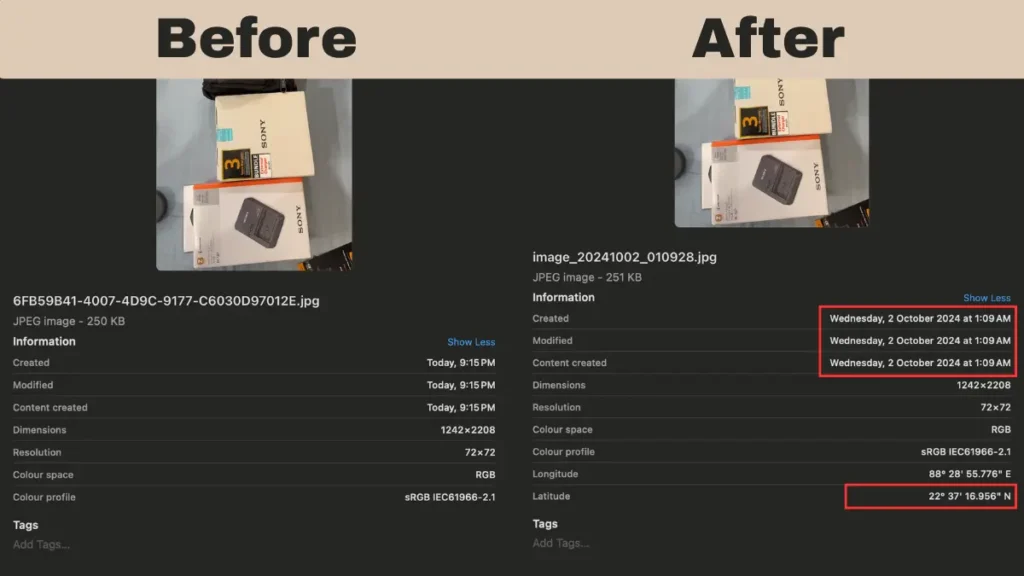
Even when your Snapchat export works perfectly, and you get all your files, they’re still broken. Snapchat strips EXIF metadata from every photo and video in the export.
What this means:
The original metadata (dates, GPS coordinates, timestamps) gets stored in a separate file called memories_history.json. But this JSON file is useless for most people because:
To actually view your memories with correct dates and locations, you need to take the data from memories_history.json and write it back into each photo’s EXIF tags. For 500+ photos, this would take days to do manually.
ExportSnaps handles all three major problems with Snapchat’s export system:
For the “no actual files” problem: ExportSnaps reads your memories_history.json file, extracts all the download URLs, and downloads the actual photos and videos directly from Snapchat’s CDN servers. It uses concurrent downloads (multiple files at once), which is much faster and more reliable than browser-based clicking.
For failed downloads: If any files fail during the download process due to network issues or timeouts, ExportSnaps creates a failed.json file containing only the unsuccessful items. You can load this file back into the app to retry just those files without re-downloading everything.
For the metadata problem: ExportSnaps automatically reads the dates, GPS coordinates, and timestamps from memories_history.json and writes them into each photo and video file’s EXIF data. Your photos will show the correct capture date in Apple Photos, Google Photos, or any gallery app instead of showing today’s date.
The process is completely local. Nothing uploads to the cloud. All processing happens on your computer. Free for up to 200 files, $15 one-time payment for unlimited files.
ExportSnaps has been tested with 1,163.34 GB libraries containing 64,790 files. It handles any size archive that Snapchat will export.
ExportSnaps will:
If your export shows “Empty export” status, verify you checked both “Export your Memories” and “Export JSON Files” before requesting again.
If you only got HTML files and no JSON folder, you forgot to check “Export JSON Files” – you’ll need to request a new export.
If you got a ZIP file that’s 2-8 MB but no actual photos, this is normal. Snapchat’s export never includes actual media files in the ZIP – only HTML and JSON files with download links. However, if you see “Empty export” text on Snapchat’s website with no download link at all, you didn’t check “Export your Memories” when submitting the request. Go back to accounts.snapchat.com and submit a new request with both “Export your Memories” and “Export JSON Files” checked.
Snapchat’s export system never includes actual photo or video files in the ZIP. The ZIP only contains HTML files with download links and a JSON file with metadata. This is completely different from Google Photos or iCloud exports. You have to open the memories_history.html file in a web browser and click each download link individually, or use a tool like ExportSnaps that reads the JSON file and downloads all the files automatically.
Snapchat’s official timeframe is up to 7 days for most exports, with larger archives taking longer depending on system demand. The commonly mentioned “24-48 hours” is not accurate. If you haven’t received the link after 10 days, submit a new request.
Snapchat removes all EXIF metadata during export and stores dates separately in memories_history.json. Gallery apps only read EXIF data embedded in photo files, so they display the download date instead of the capture date. You need to use a tool like ExportSnaps to read the dates from the JSON file and write them back into your actual photo files where gallery apps can read them.
The memories_history.json file contains all your memories’ metadata and download links. Each entry includes the capture timestamp (in UTC), GPS coordinates, media type (image or video), and the CDN download URL. Most people can’t use this file directly because it requires technical knowledge to parse JSON and write EXIF data. Tools like ExportSnaps read this file automatically, download all your memories from the URLs, and embed the metadata into each file.
Most “Snapchat empty export” searches happen for two different reasons:
The second scenario is more common. Snapchat’s export system works completely differently than other platforms. Your photos and videos stay on Snapchat’s servers until you download them by clicking individual links in the HTML file, or using a tool that processes the download URLs automatically.
The three main causes are:
The HTML-based download system creates additional problems: browser timeouts, failed downloads that can’t be retried, and stripped metadata that breaks photo organization in gallery apps.
For small archives under 200 files, manually downloading through the HTML interface might work. For anything larger, or if you want your memories to show correct dates and locations in your photo library, you need proper tools designed to handle Snapchat’s export format.
ExportSnaps reads the memories_history.json file, downloads all your actual photos and videos from the URLs, and embeds the correct metadata so everything works properly in Apple Photos, Google Photos, or any gallery app.